🇬🇧 Read in English · 🇮🇳 Hinglish me padhiye
🇬🇧 English
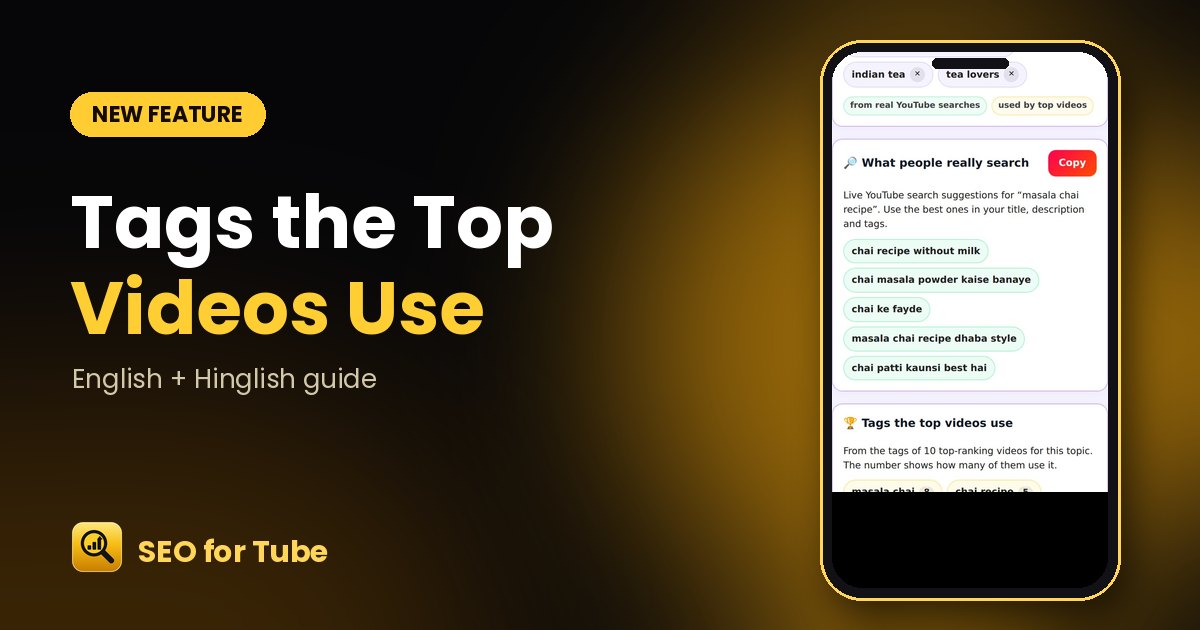
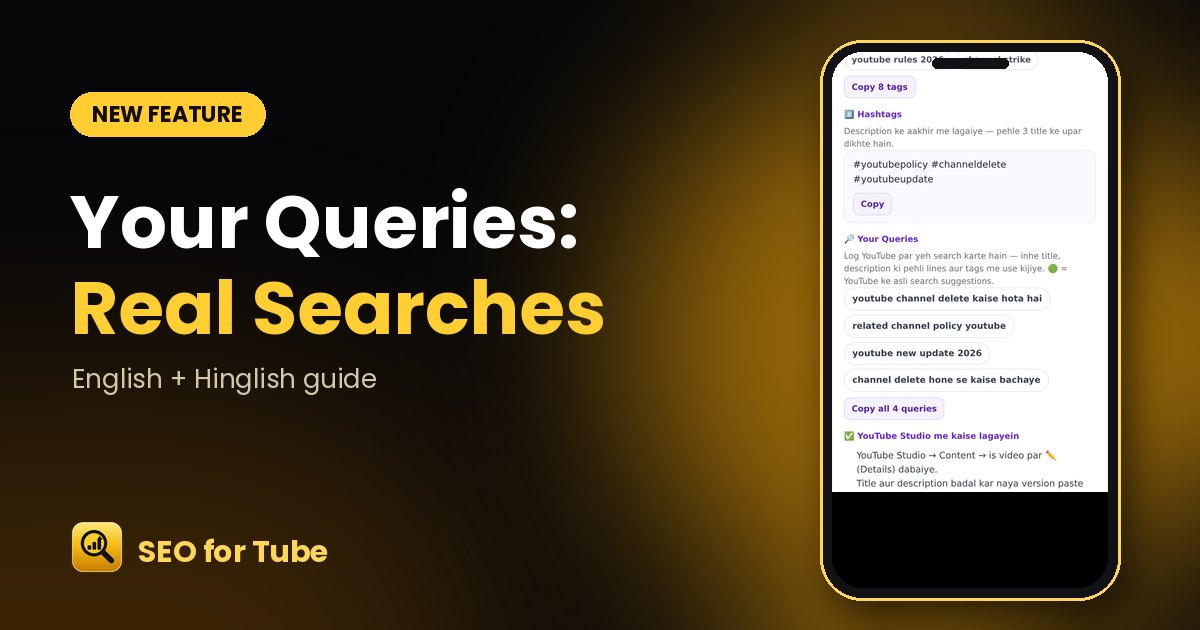
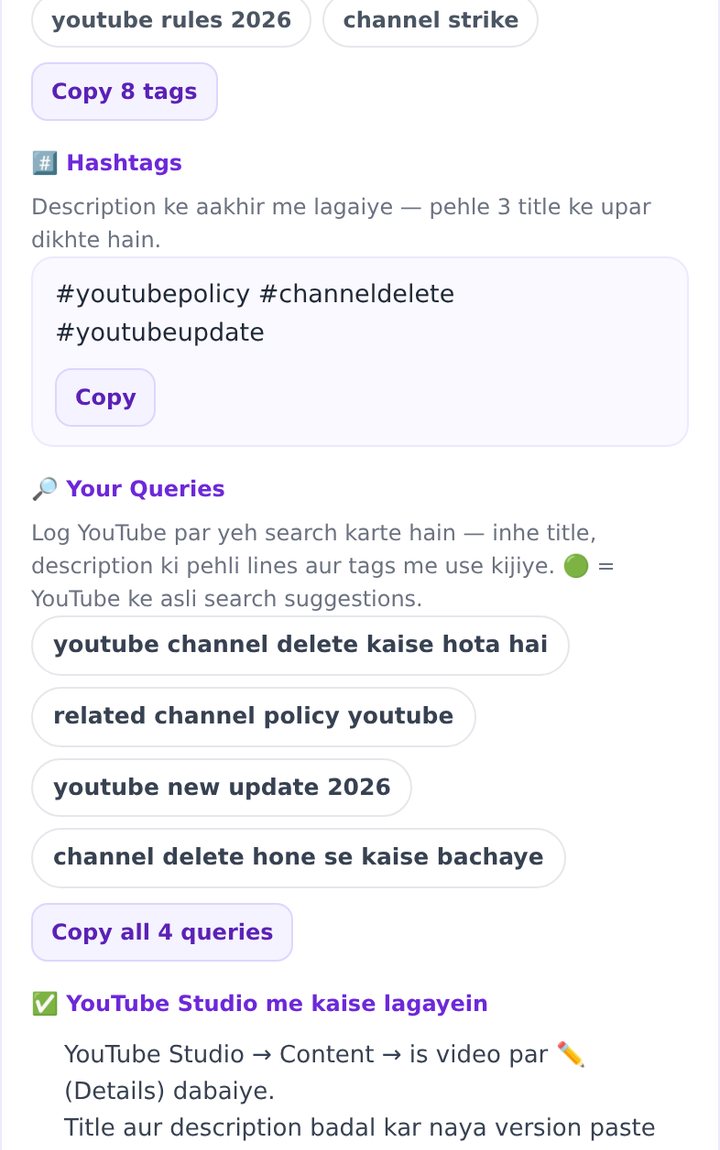
The best keywords are the words people already type. 🔎 Your Queries shows real YouTube search suggestions for your topic — green chips you can tap to copy — in “Fix an old video” and now on Video Planner’s final step too.
How it works
- In Video Planner, tap “Get queries” on the SEO step.
- Real searches appear as green 🔎 chips.
- On the final step, the same list sits next to your title, tags and hashtags.
- Tap a chip to copy it, or “Copy everything” to copy all at once.
Why it helps
- Use the exact phrases viewers search for.
- Real searches are marked so you can tell them apart from AI ideas.
- “Copy everything” now includes tags and queries too.
FAQ
Where do the queries come from?
From YouTube’s own search suggestions for your topic.
How should I use them?
Put the best one in your title and first description line, and add the rest as tags.
🇮🇳 Hinglish
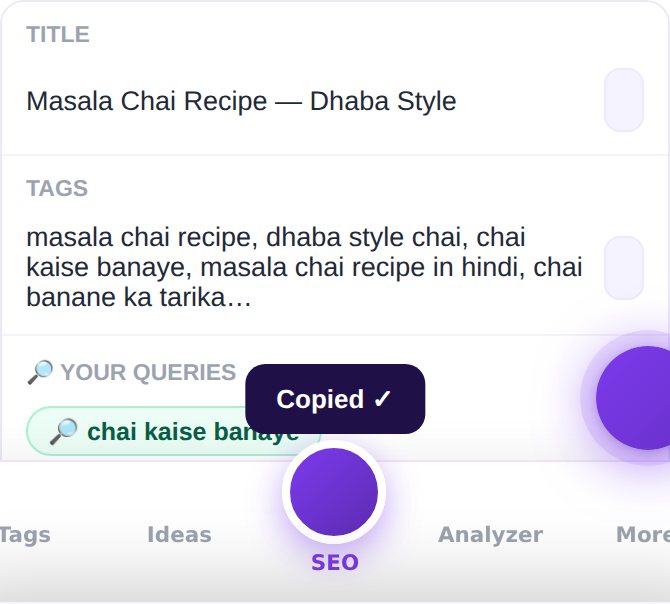
Sabse achhe keywords wahi hain jo log pehle se type karte hain. 🔎 Your Queries aapke topic ke asli YouTube search suggestions dikhata hai — hari chips jinhe tap karke copy kar sakte hain — “Fix an old video” me, aur ab Video Planner ke aakhri step par bhi.
Kaise kaam karta hai
- Video Planner ke SEO step par “Get queries” dabaiye.
- Asli searches hari 🔎 chips me aayengi.
- Aakhri step par yahi list title, tags aur hashtags ke saath dikhegi.
- Chip par tap karke copy, ya “Copy everything” se sab ek saath.
Kyon faydemand hai
- Wahi shabd jo dekhne wale search karte hain.
- Asli searches alag nishaan ke saath, AI ideas se alag.
- “Copy everything” me ab tags aur queries bhi.
Aksar pooche jaane wale sawaal
Queries kahan se aati hain?
Aapke topic ke liye YouTube ke apne search suggestions se.
Inka istemaal kaise karein?
Sabse achhi query title aur description ki pehli line me, baaki tags me.