🇬🇧 Read in English · 🇮🇳 Hinglish me padhiye
🇬🇧 English
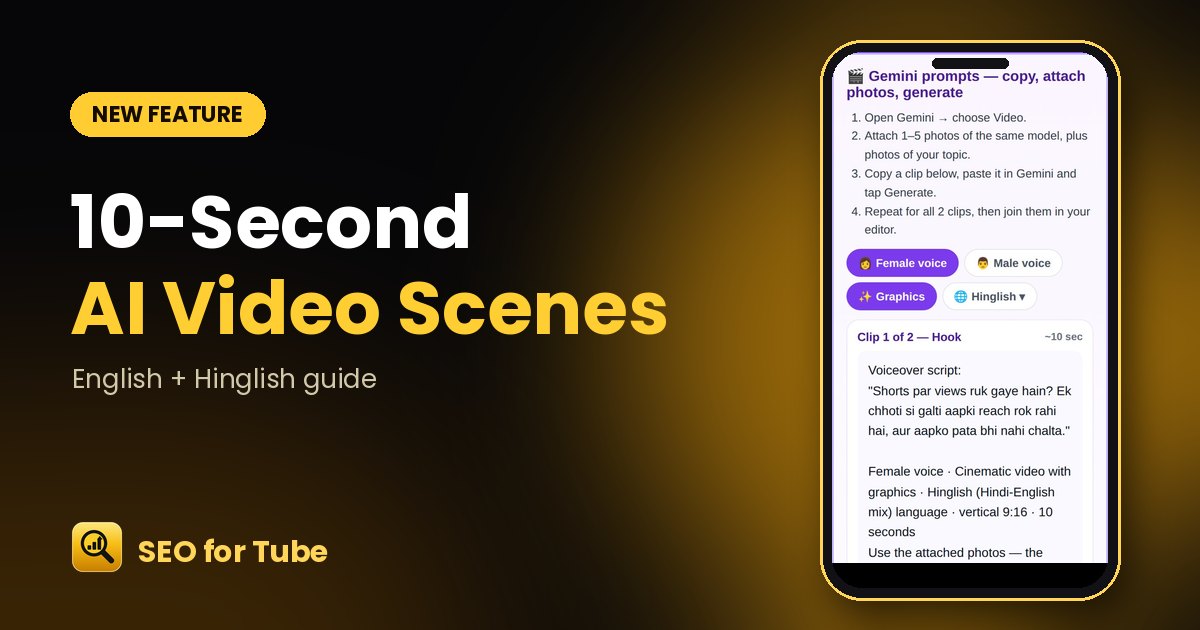
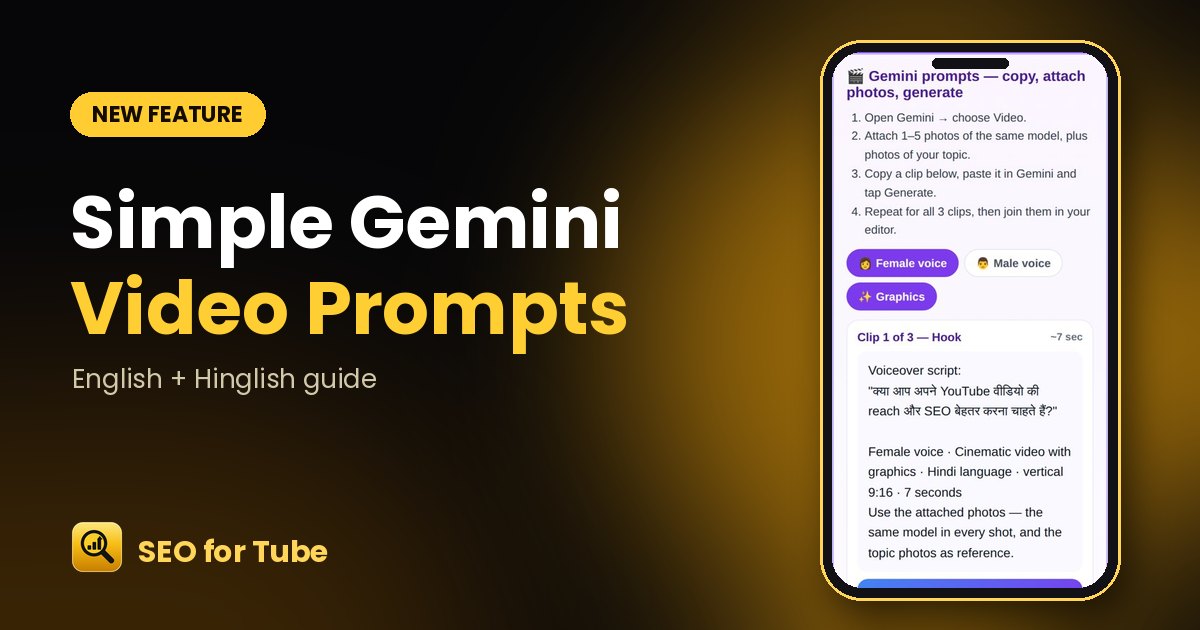
Long prompts confuse AI video tools and the video often doesn’t finish. Video Planner now gives a short, clean prompt for each clip: the exact voiceover plus one line with voice, language, style and ratio.
How it works
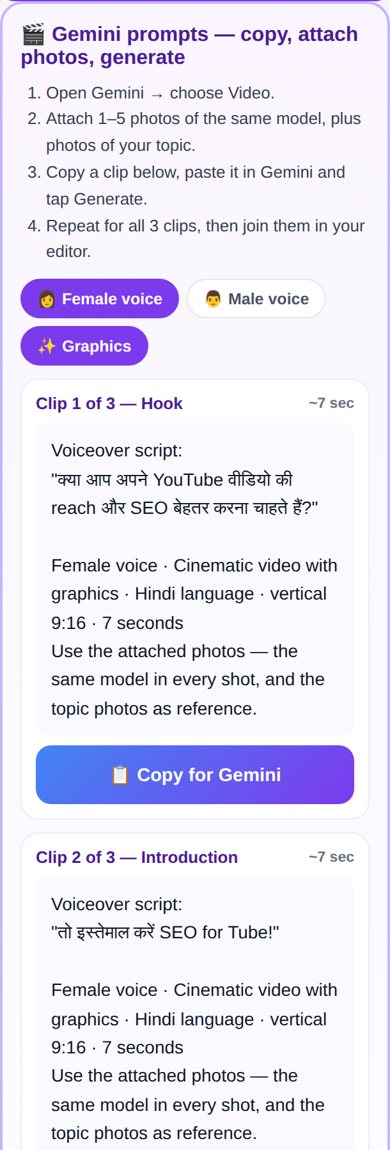
- Create an AI video plan in Video Planner.
- Open Gemini → Video, and attach 1–5 photos of the same model plus topic photos.
- Copy a clip from the “🎬 Gemini prompts” card and paste it.
- Repeat for every clip and join them in your editor.
Why it helps
- Female / Male voice and Graphics switches update every prompt instantly.
- The full scene plan is still there under “Advanced”, for editors.
- On Android, Gemini opens right after copying.
FAQ
Why attach photos?
Using the same model photos in every clip keeps the person looking the same.
Can I change the language?
Pick the language in plan settings and tap “Make again” — the script is rewritten in that language.
🇮🇳 Hinglish
Lambe prompt AI video tools ko uljha dete hain aur video aksar poora nahi banta. Video Planner ab har clip ka chhota, saaf prompt deta hai: asli voiceover aur ek line me voice, bhasha, style aur ratio.
Kaise kaam karta hai
- Video Planner me AI video plan banaiye.
- Gemini → Video kholiye, same model ki 1–5 photo aur topic ki photo attach kijiye.
- “🎬 Gemini prompts” card se ek clip copy karke paste kijiye.
- Har clip ke liye dohraiye aur editor me jodiye.
Kyon faydemand hai
- Female / Male voice aur Graphics buttons se har prompt turant badalta hai.
- Poora scene plan “Advanced” me ab bhi hai, editors ke liye.
- Android par copy karte hi Gemini khul jata hai.
Aksar pooche jaane wale sawaal
Photo kyon attach karein?
Har clip me same model ki photo se chehra ek jaisa rehta hai.
Bhasha badal sakte hain?
Plan settings me bhasha chuniye aur “Make again” dabaiye — script usi bhasha me dobara banegi.