AI Video Prompt Generator
From one topic to ready scene prompts for Gemini (Veo) — with a full voiceover that never stops mid-sentence.
Make my AI video planAI video tools are easy until you have to write the prompt. How long should it be? How do you keep the same person in every scene? Why does the voice not match the script? This generator does that work for you.
You choose the length, the frame size, who appears and the voice. It writes the full voiceover first, then splits it into 8-second clips — the length Gemini (Veo) makes in one go — so every clip says its whole line.
Your face or an AI presenter
Use your own photo and each prompt starts with “Animate my photo”, describing only the movement so your face stays yours. Or choose an AI presenter whose look stays the same in every scene.
Words that are spoken exactly
Spoken lines go into the prompt in quotes, as exact words, which video tools follow closely. If you need the words 100% exact, choose a silent video and add the voiceover in your editor.
One tap to Gemini
A big button copies the whole video as one prompt — or, for longer videos, one scene at a time. On Android the Gemini app opens right after copying.
Captions are kept out of the video itself (AI tools draw text badly) and come as a ready .srt file for your editor.
How to use it
- Choose AI video, the length and the frame size.
- Pick who appears — your photo, an AI presenter or no face — and the voice.
- Tap “Copy Gemini / Veo Prompt” and paste it in Gemini.
- Join the clips in your editor and add the captions file.
Questions creators ask
Can I make an AI video with my own face?
Yes. Attach one clear, front-facing photo of yourself in Gemini with each scene prompt. Gemini does not accept photos of famous people or children.
Why are the scenes 8 seconds long?
Gemini (Veo) makes about 8 seconds per clip. Each scene is one clip, and its line is written to fit those 8 seconds.
Does it work in Hindi?
Yes — the script and voiceover can be in Hindi, Hinglish, English and many other languages.
Why are captions not inside the video?
AI video tools often misspell or distort text. Adding captions in your editor with a proper font always looks better.
📚 Guides for this tool
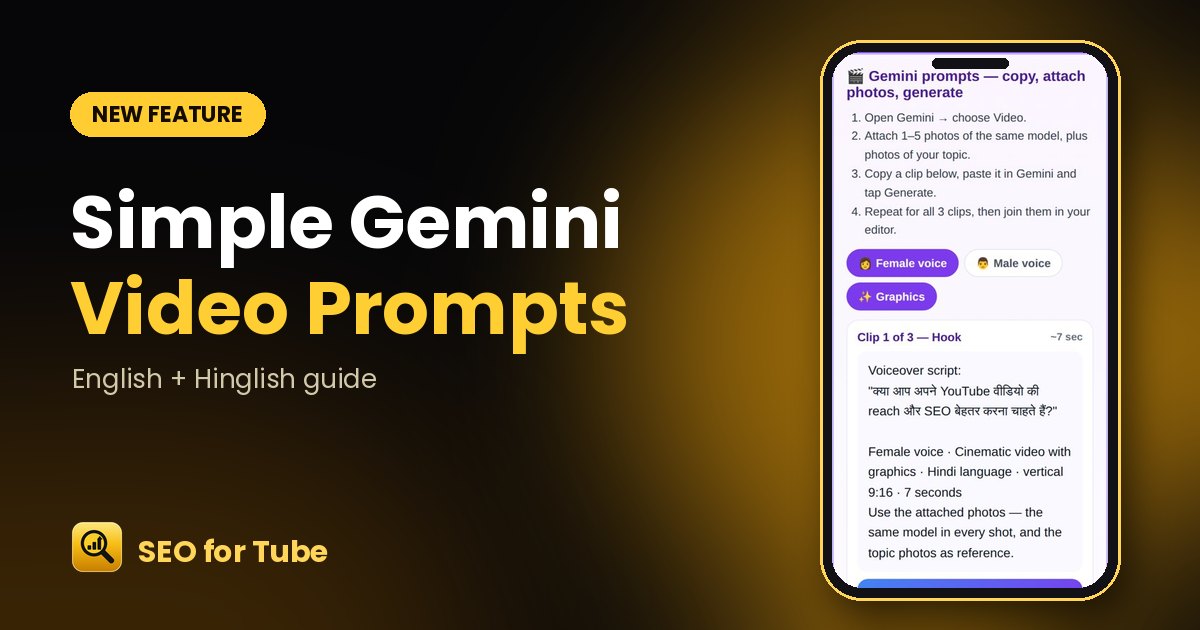 Simple Gemini AI Video Prompts: Copy, Attach Photos, GenerateVideo Planner now gives one short, clean prompt per clip: the voiceover script plus voice, language, style an…
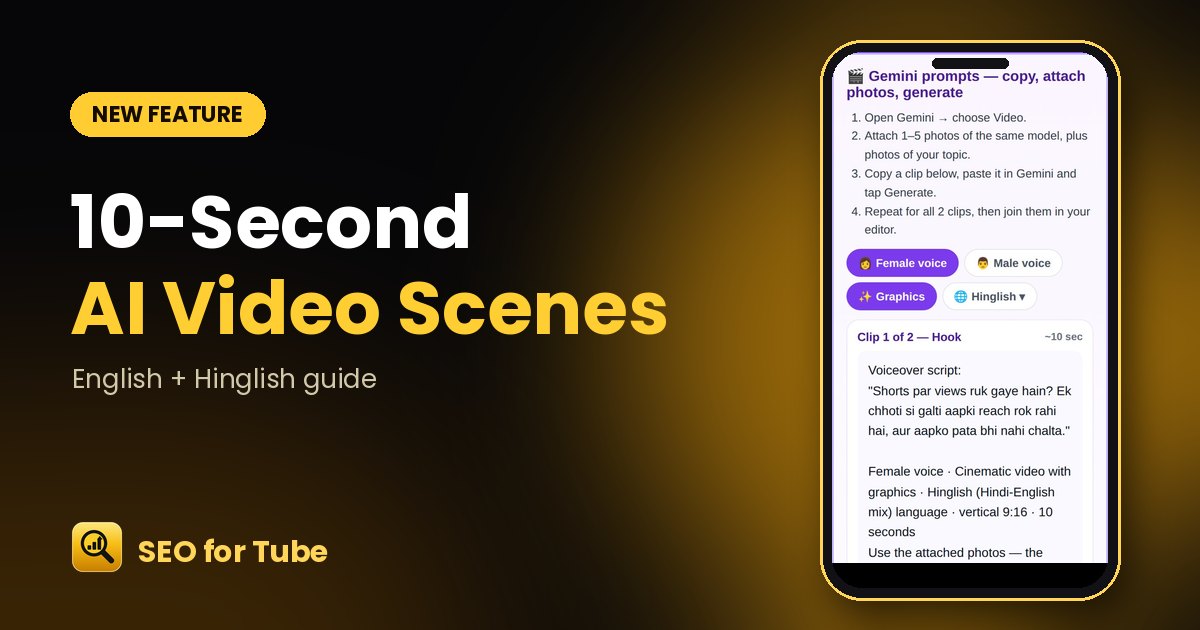 AI Video in 10-Second Scenes: Exact Length, Honest ScriptsPick 10, 20 or 30 seconds and get exactly that: one 10-second scene per clip, scripts that fit, and a warning…