Hashtags help viewers find similar videos — but #viral and #explore on every video do nothing. A YouTube hashtag generator should give hashtags specific to your topic.
- You get up to 50 hashtags ranked by relevance to your topic — brand, dish, place, person or sub-niche names first, never generic filler.
- 4 steps: Generate SEO → Keep the top 5–15 → Copy with Description → Check in Studio.
- Use 3–5 in the description for Shorts.
Who is this for?
Creators who add random trending hashtags and want ones that actually match their video.
Specific, ranked hashtags
You get up to 50 hashtags ranked by relevance to your topic — brand, dish, place, person or sub-niche names first, never generic filler.
Hashtags that help — step by step
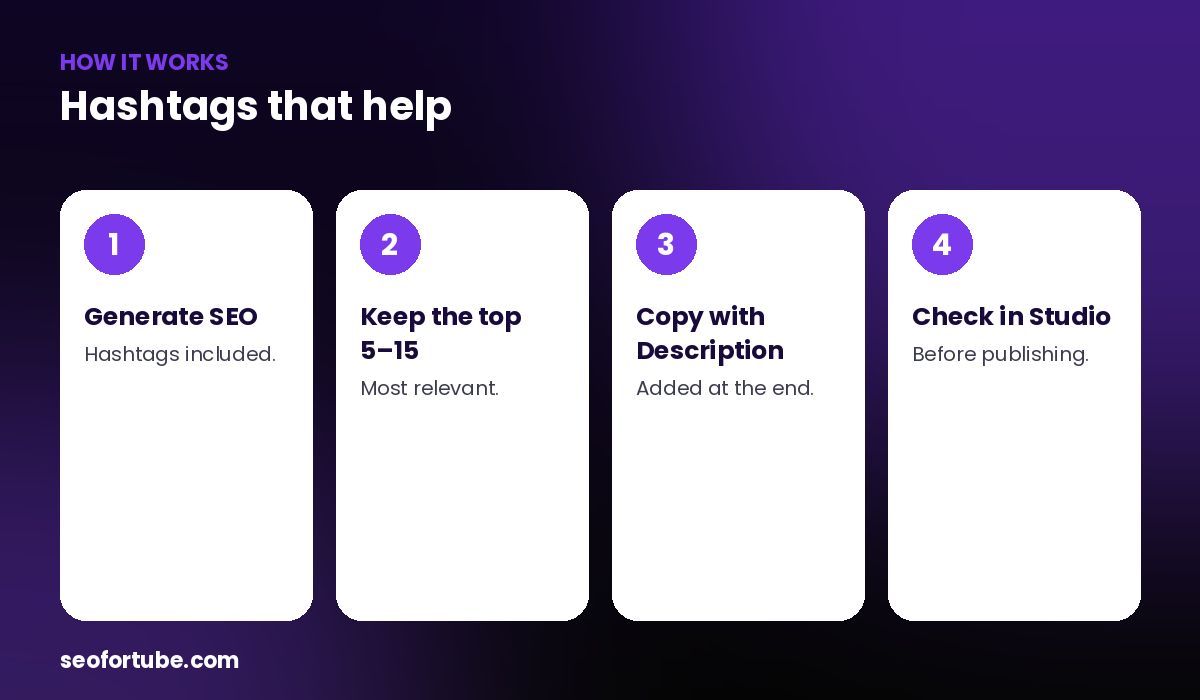
- Generate SEO — hashtags included.
- Keep the top 5–15 — most relevant.
- Copy with Description — added at the end.
- Check in Studio — before publishing.
How YouTube uses them
Hashtags in the description become links; the first few can show above the title. Use a handful of strong ones rather than dozens.
Added for you
The Description button copies your description with the best hashtags at the end.
Example: a travel video
For “Manali trip budget”, the top hashtags were #manali #manalitrip #himachal #budgettravel — not #viral or #trending.
Mistakes to avoid
- #viral #explore everywhere. They don’t target anyone.
- Too many hashtags. Keep it focused.
- Hashtags unrelated to the video.
- Spaces inside hashtags.
Smart tips
- Use 3–5 in the description for Shorts.
- Put your channel’s own hashtag last.
- Use the language your audience types.
- Don’t repeat tags as hashtags blindly.
Hindi mein samjhein
Hashtag generator aapke topic ke khaas hashtags deta hai — #viral jaisa kachra nahi. Description button sabse achhe hashtags apne aap jod deta hai.
FAQ
How many hashtags should I use?
A focused handful — about 3–15.
Do hashtags help SEO?
They help discovery of similar videos.
Are they in Hindi?
In the language you choose.
Where do I paste them?
At the end of the description.